
Set up Echoes the way you like
Settings → General controls how Echoes syncs, what it shows and how it behaves. Open Settings from the gear on the left rail.
4 steps2 min
Why it matters
The defaults suit most people. A few switches change daily use: Show Times puts dates on every chat, and turning off the Floating Button clears it off AI sites if you open Echoes from the toolbar anyway.
Step by step
- 1
Open Settings
Click the gear on the left rail. Settings opens on General. The other tabs are Features, Search, Summarization, Accounts, AI Usage and Shortcuts.
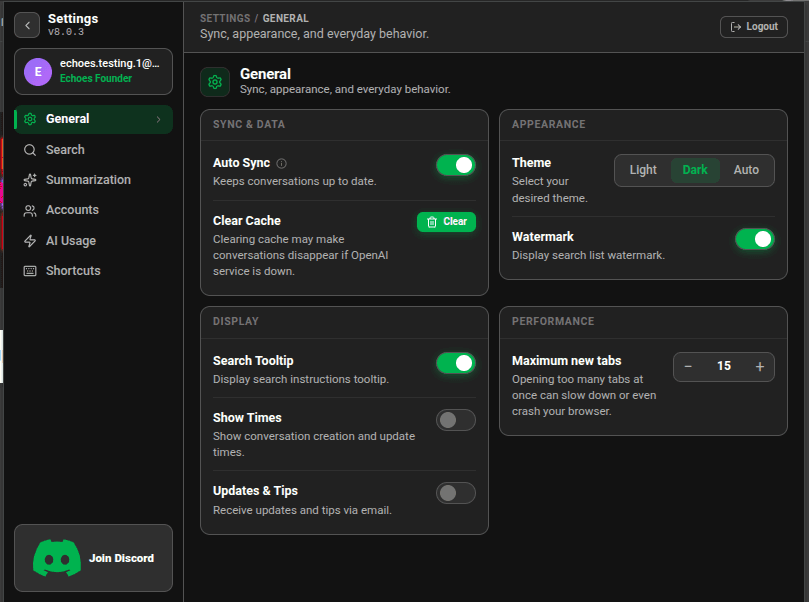
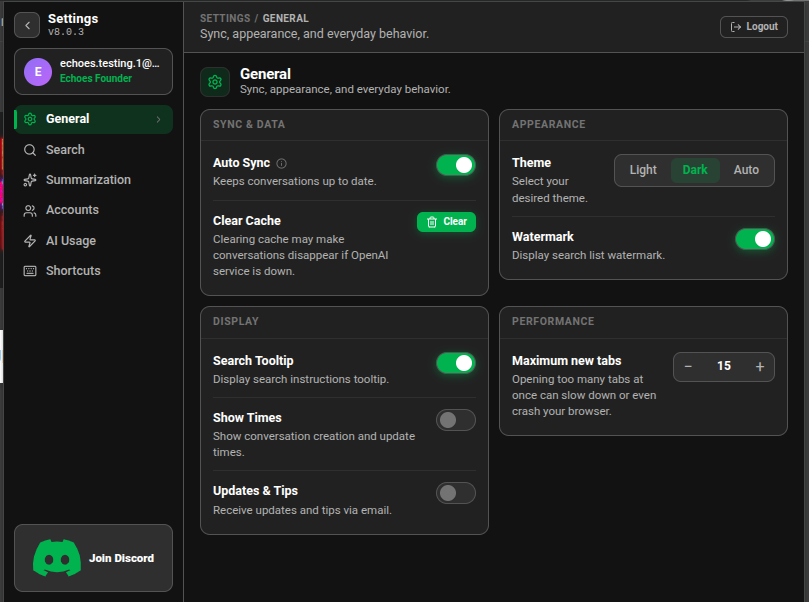
Settings General tab with sync, display and appearance options - 2
Sync and data
Auto Sync keeps your chat list up to date and is on by default. Clear Cache empties the local copy and downloads it again, which fixes a list that looks out of date.
- 3
Display
Show Times adds created and updated dates to each chat. Watermark shows the Echoes mark behind the list. Floating Button shows the Echoes button on AI sites; Echoes asks before hiding it.
- 4
Help
Product tour → Restart replays the guided tour from your first install. Updates & Tips sends product news by email.
Good to know
- Two settings are for Plus: Search Tooltip, which shows the search guide when Echoes opens, and Maximum new tabs.
- Settings → Search sets how many matching lines each result previews (Preview Range) and whether matches are highlighted on the platform (Keyword navigation search).
Related tutorials
- ExtensionDesktopSwitch between light and dark themePick Light, Dark, or Auto to follow your system.
- ExtensionDesktopWhere Echoes keeps your conversationsYour chats stay on your device. Here is what syncs to your account, and what Echo and summaries send.
- ExtensionOpen Echoes from the keyboardCtrl+Shift+E opens the popup, Alt+Shift+E opens the side panel. Change them in Chrome.