
Keep important chats one click away with favorites
Click the heart on a chat to make it a favorite. The heart button in the filter bar then filters the list to your favorites, across platforms and accounts.
3 steps2 minVideo walkthrough
Why it matters
Some chats you come back to each week: the prompt that writes your newsletter, the Claude chat holding your API notes. Scrolling for them through 700 conversations costs a minute each time. A favorite puts them two clicks away.
Step by step
- 1
Heart a chat
Hover a chat row and click the heart that appears on the right (tooltip Add to favorites). Favorites keep a green heart. Add to Favorites in the row's ⋮ menu does the same.

Conversation list with green hearts on favorite chats - 2
Filter to your favorites
Click the heart button, second from the left in the filter bar (tooltip Show favorites only). Click it again to see all chats. Typing
favorite:truein the search box does the same.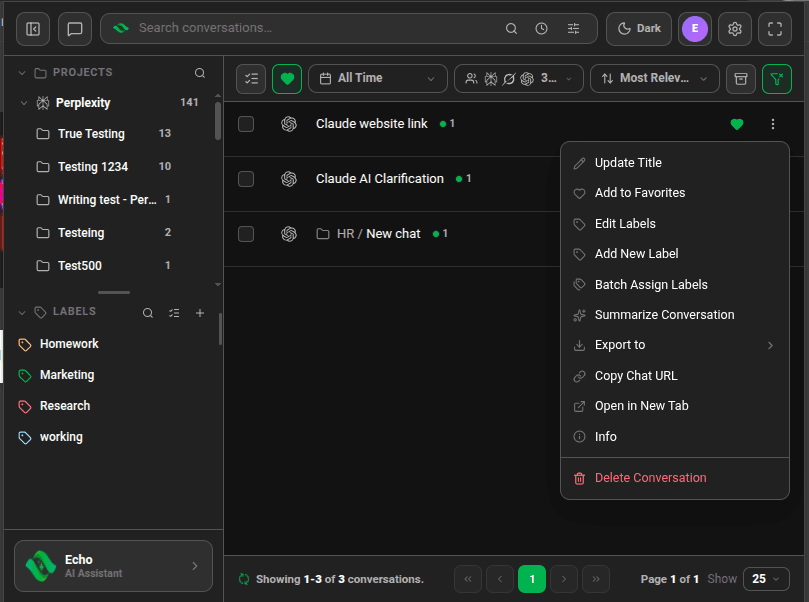
Favorites filter on, list showing favorite conversations - 3
Favorite many chats at once
Tick the chats you want, open Action → Favorites and choose Add or Remove.
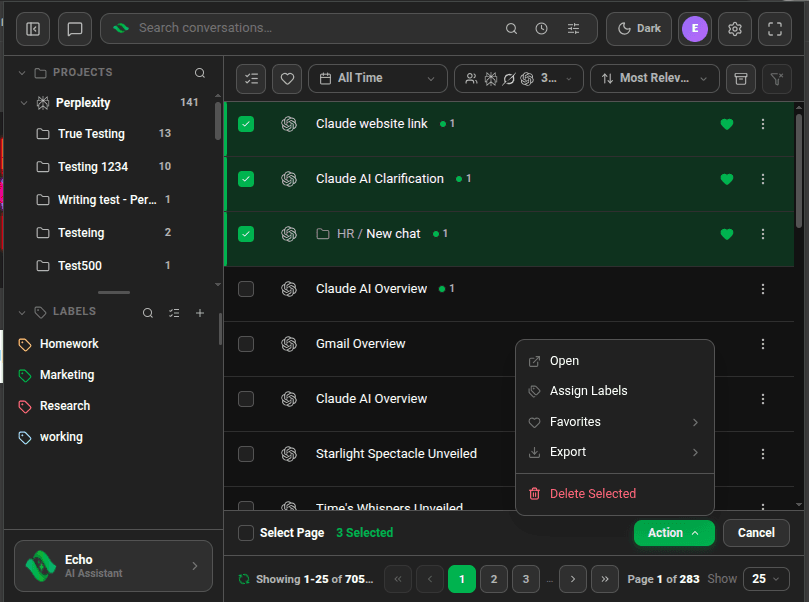
Three chats selected with the Action menu open showing Favorites


Good to know
| Plan | Limit |
|---|---|
| Lite (free) | Up to 10 favorites |
| Plus & Lifetime | Unlimited |
- To remove a favorite, click its green heart again (tooltip Remove from favorites).
- Combine the favorites filter with a search or a label to narrow further.
- On Plus or Lifetime, ask Echo "Show my favorite conversations" and it switches the filter on for you.
Related tutorials
- ExtensionDesktopOrganize chats with labels and sublabelsCreate colored labels, nest them, and tag chats from any AI by menu or by dragging.
- ExtensionDesktopAsk Echo to find a conversationDescribe the chat in your own words and Echo runs the search for you.
- ExtensionDesktopLabel, export or delete many chats at onceSelect chats and act on the whole selection from one Action menu.
Try it in Echoes
The free Lite plan covers all seven AI platforms. No card needed.