
Organize chats with labels and sublabels
Labels are your own folders that work across platforms: one label can hold chats from ChatGPT, Claude and Gemini. Create them with the + in the LABELS panel and assign them from a chat's ⋮ menu or by dragging.
6 steps3 minVideo walkthrough
Why it matters
Platform projects stop at the platform. Your "Tax 2026" research might be three ChatGPT chats, a Claude chat and a Perplexity search. One label pulls the five together, and clicking it shows them in one list.
Sublabels add a second level, such as Marketing / Ads and Marketing / Email, and the color makes a label easy to spot in a long list.
Step by step
- 1
Open the Labels panel
Click the tag icon on the left rail (tooltip Labels). The LABELS panel has three buttons in its header: search, Select multiple, and + to create a label.

Echoes dashboard with the Labels panel open - 2
Create a label
Click +. In the Create Label dialog, type a Name, pick one of 10 colors or click the rainbow swatch for a custom one, and check the Preview. Click Save.
- 3
Nest a label under another
Choose a Parent in the Create Label dialog, or drag one label onto another in the panel. Chats then show the full path, such as Marketing/Ads. ⋮ → Add Sublabel on a label creates a child in one step.
- 4
Add a label to a chat
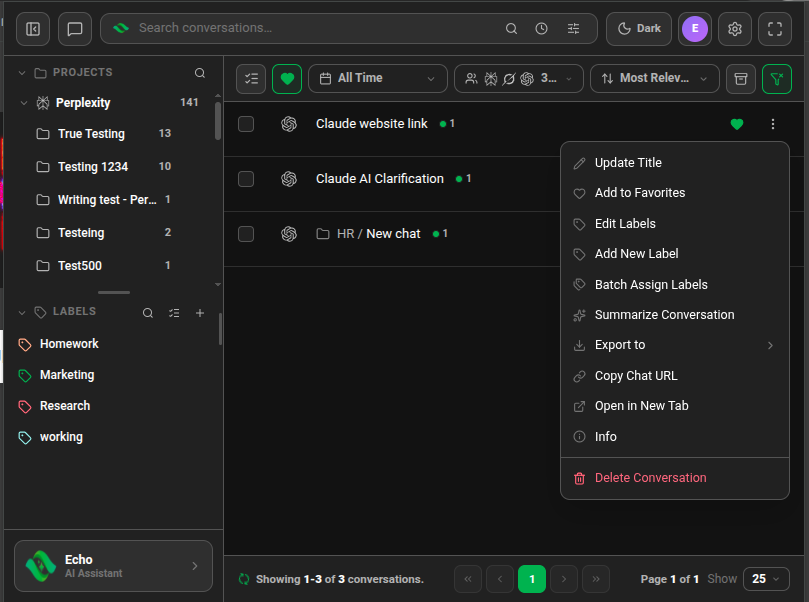
Open the chat's ⋮ menu and choose Edit Labels, tick the labels you want and click Ok. Add New Label in the same menu creates a label and adds it to that chat at once.
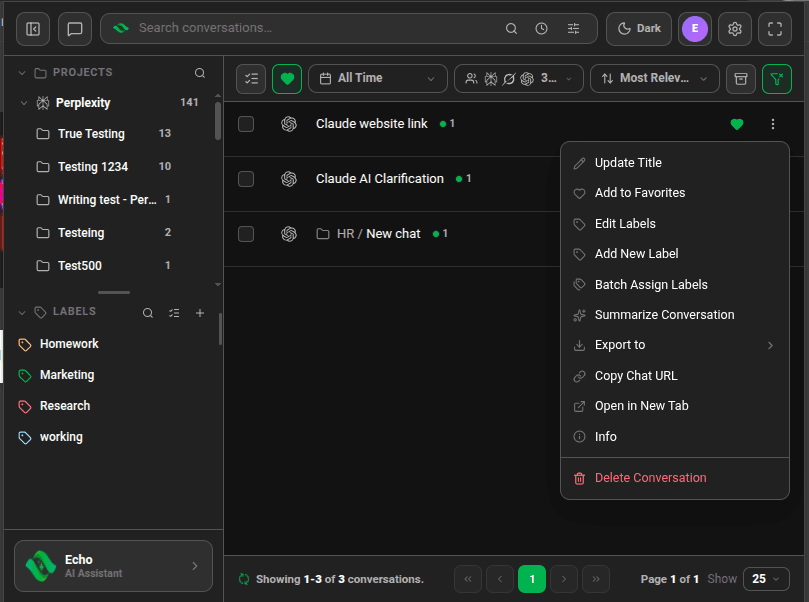
Conversation menu with Edit Labels, Add New Label and Batch Assign Labels - 5
Drag to label faster
Drag a chat onto a label in the panel, or drag a label onto a chat. Select several chats first and you can drag the whole selection at once.
- 6
Filter by label
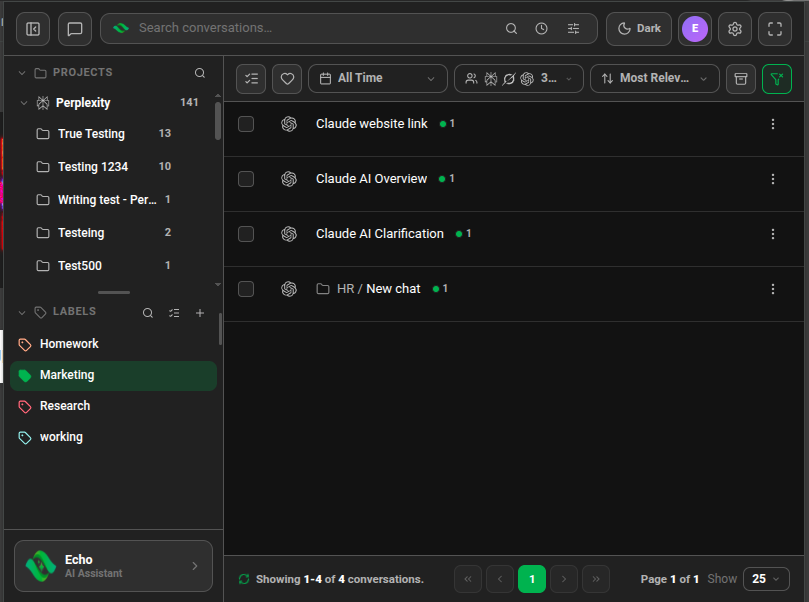
Click a label to filter the list to chats with that label.
Ctrl/⌘+click adds more labels,Shift+click selects a range. Click the label again to clear it.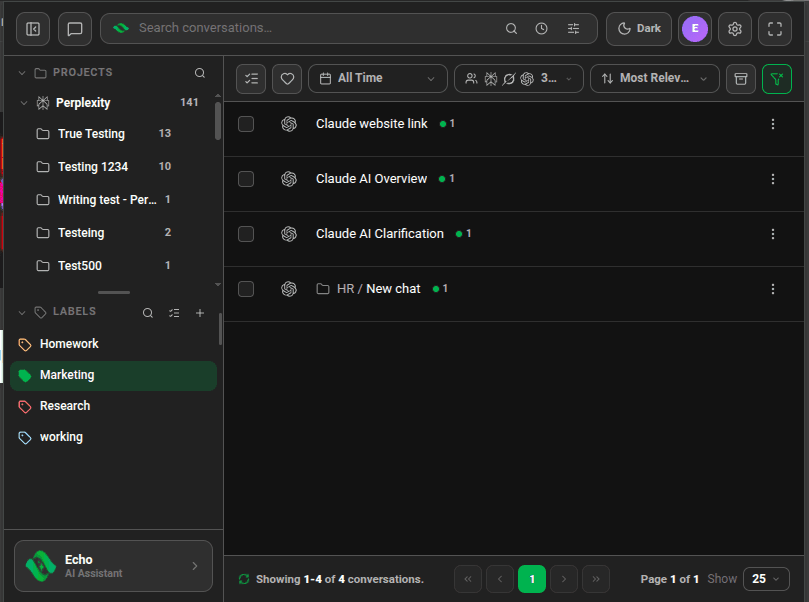
Marketing label selected, list filtered to four conversations

Good to know
| Plan | Limit |
|---|---|
| Lite (free) | 5 labels in total, sublabels included. Batch labelling: 5 chats at a time |
| Plus & Lifetime | Unlimited labels |
- Edit or delete a label from its ⋮ menu (tooltip Label options). Deleting a parent asks whether to delete its sublabels too.
- The panel shows two levels: labels and their sublabels. Keep deeper structure out of it.
- On Plus and Lifetime, labels sync to your Echoes account, so they appear on another computer after you sign in there.
- If you move from Plus back to Lite, Echoes keeps your first 5 labels on that browser.
FAQ
Do labels change anything on ChatGPT or Claude?
No. Labels live in Echoes. The platforms never see them.
Can one chat have several labels?
Yes. Tick as many as you like in Edit Labels. The chat row shows each one.
Do sublabels count toward the Lite limit?
Yes. Lite allows 5 labels in total, and a sublabel counts as one.
Related tutorials
- ExtensionDesktopLabel, export or delete many chats at onceSelect chats and act on the whole selection from one Action menu.
- ExtensionDesktopBrowse your AI projects in one panelSee ChatGPT Projects, Claude projects, Grok workspaces and Perplexity Spaces side by side.
- ExtensionDesktopKeep important chats one click away with favoritesHeart a chat, then filter to your favorites with one button.
Try it in Echoes
The free Lite plan covers all seven AI platforms. No card needed.