
Export chats to Markdown, HTML or JSON
Choose Export to from a chat's ⋮ menu, or select several chats and use Action → Export. Pick JSON, HTML or Markdown and Echoes downloads the file, or a .zip for several chats.
3 steps2 minVideo walkthrough
Why it matters
Your chats live on someone else's servers. An export gives you a copy you control: Markdown for Obsidian or Notion, HTML to read in any browser, JSON for your own scripts.
It also matters before a cleanup. Export the 40 chats from a finished project, then delete them from ChatGPT knowing you have them.
Step by step
- 1
Export one chat
Open the chat's ⋮ menu, hover Export to and pick JSON, HTML or Markdown. The desktop app also offers PDF.
- 2
Or export a batch
Tick the chats you want, click Action → Export and pick a format. Echoes downloads one .zip named
conversations_<date>.zip.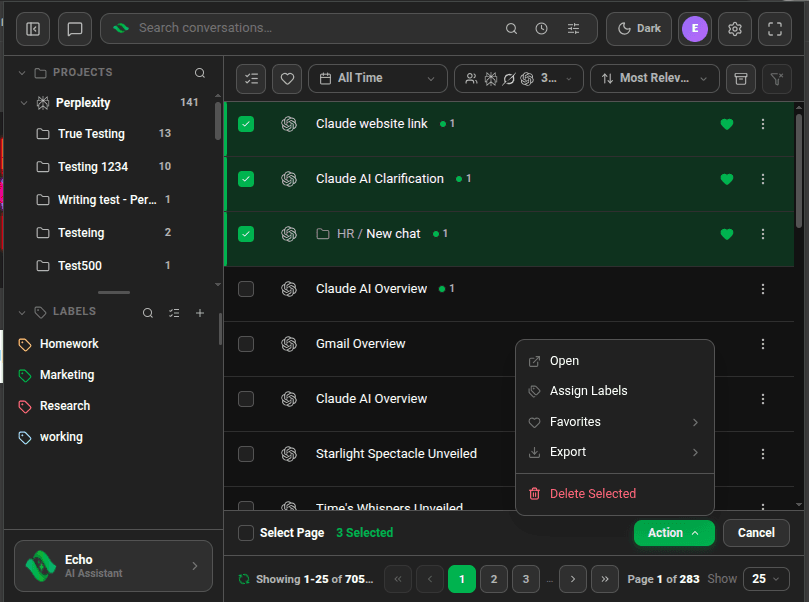
Several chats selected with the Action menu showing Export - 3
Find the file
The file lands in your downloads folder, named after the platform, date, project and title, such as
Claude 20261014 Onboarding emails.md.

Good to know
| Plan | Limit |
|---|---|
| Lite (free) | 5 chats a month, up to 5 per export |
| Plus & Lifetime | No monthly limit. ChatGPT: 50 chats per export |
- Markdown exports start with an overview (title, link, dates, message count) and the summary if the chat has one.
- Markdown and HTML include every branch of a chat where you edited a message.
- ChatGPT exports take longer: Echoes downloads the messages when you export, 25 chats at a time.
FAQ
Can I export to PDF?
In the desktop app, yes. In the Chrome extension, export to HTML, open the file and use your browser's Print → Save as PDF.
Does exporting remove the chat from the platform?
No. Export makes a copy. The chat stays where it is.
Related tutorials
Try it in Echoes
The free Lite plan covers all seven AI platforms. No card needed.