
Summarize a long conversation
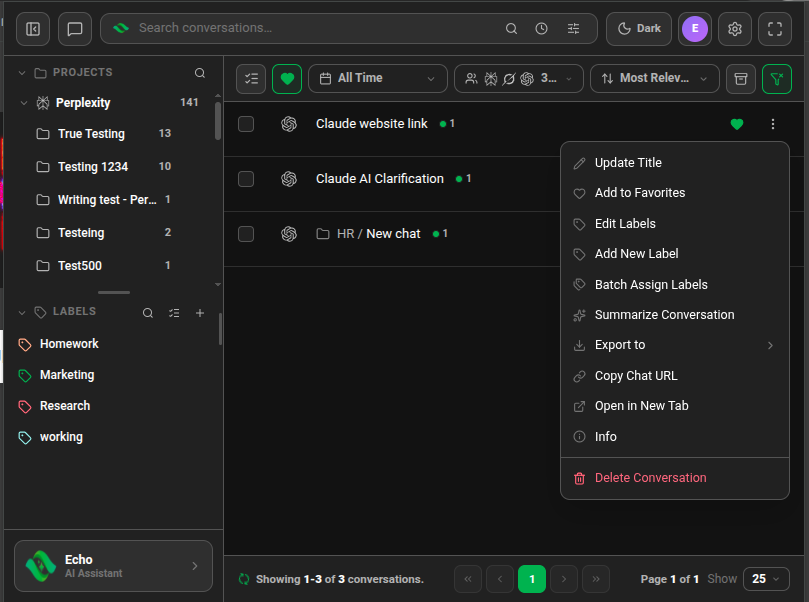
Choose Summarize Conversation from a chat's ⋮ menu. Echoes writes a summary with an AI you pick in Settings → Summarization and shows it under the chat.
4 steps2 minVideo walkthrough
Why it matters
A 60-message debugging session holds two decisions you care about. Reading it again to find them takes ten minutes. A summary gives you the gist in a paragraph, and exports include it at the top of the file.
Step by step
- 1
Pick the AI that writes summaries
Open Settings → Summarization and choose a Summarization LLM Service: ChatGPT, Claude, Gemini or Perplexity. Each one appears once you have connected an account for it. For Claude, Gemini or Perplexity, choose the Account to use: the summary runs through that account.
- 2
Summarize a chat
Open the chat's ⋮ menu and choose Summarize Conversation. A Summary panel opens under the row and shows Summarizing conversation, please wait… until it is ready.
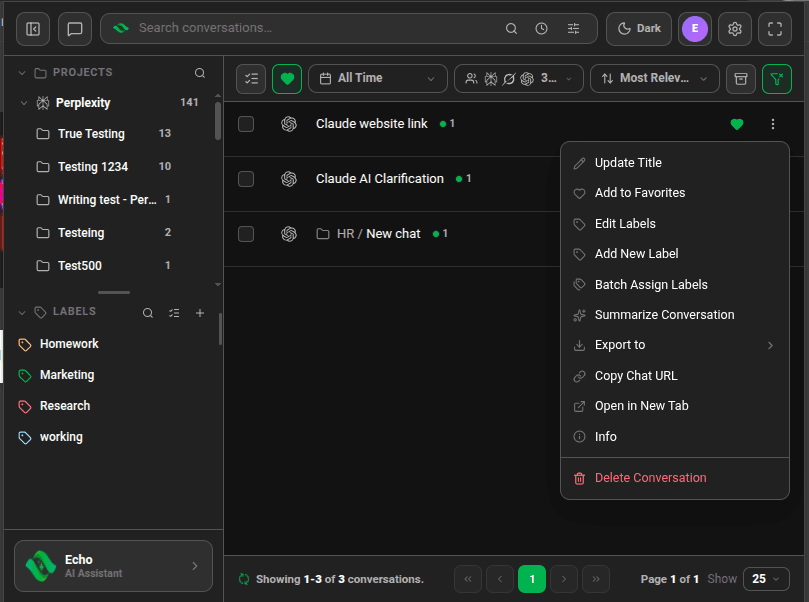
Conversation menu with Summarize Conversation - 3
Read, copy or close it
Read the summary in the panel. Copy summary puts it on your clipboard. Close summary hides it. Echoes keeps the summary, so opening it again later doesn't use another one.
- 4
Use your own prompt (optional)
To change how summaries read, such as "list the decisions and open questions", choose Chatgpt as the service, paste an OpenAI API Key, and edit the Custom prompt. Reset to default restores the original.
Good to know
| Plan | Limit |
|---|---|
| Lite (free) | 10 summaries a month. A failed attempt counts |
| Plus & Lifetime | Unlimited |
- Echoes summarizes from the first three and last three messages of the chat, which keeps it fast on very long chats.
- In the desktop app, Summarize Conversation opens a Summarize with menu: Local AI runs on your computer, and ChatGPT, Claude, Gemini or Perplexity run through your account.
- Markdown and HTML exports include the summary when the chat has one.
Related tutorials
Try it in Echoes
The free Lite plan covers all seven AI platforms. No card needed.