
Keep several chats open as tabs, with your library beside them
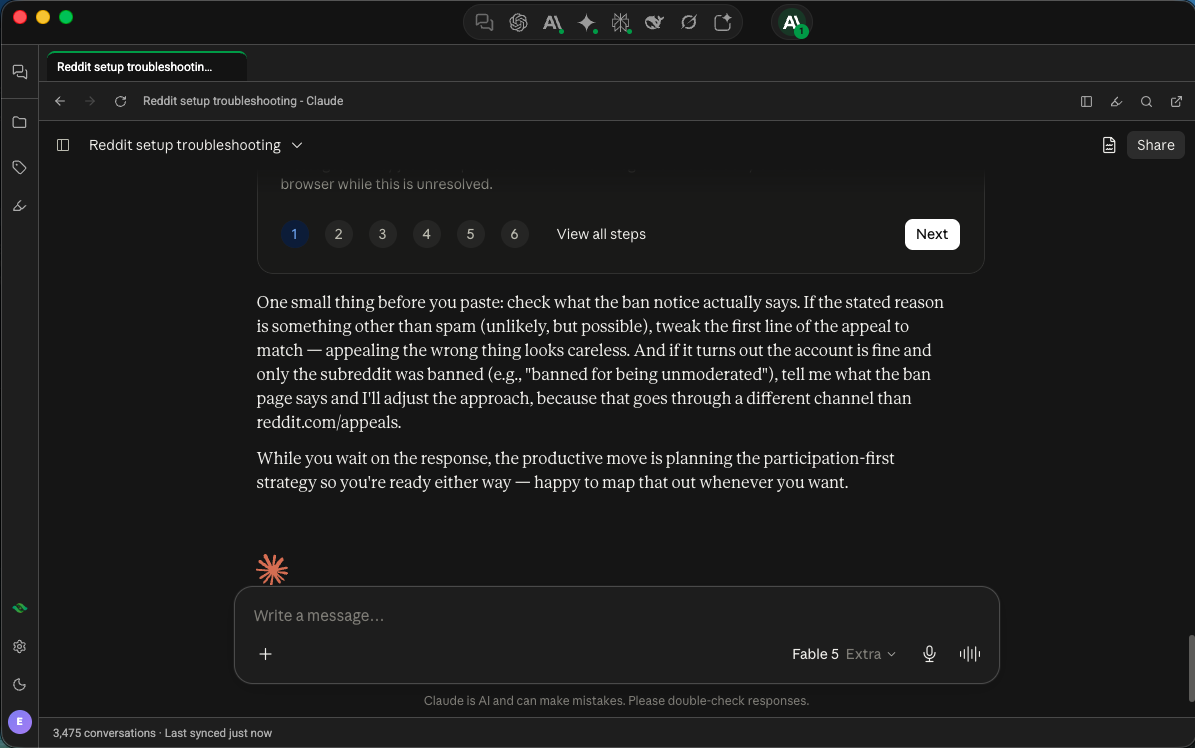
Ctrl+click a chat in the library (⌘+click on Mac), or choose Open in New Tab, to open it in a tab. The split-view icon puts your conversation library beside the chat you're reading.
3 steps2 min
Why it matters
You're comparing how ChatGPT and Claude answered the same question, while a third chat holds your notes. Tabs keep all three open and one click apart, and split view keeps the library in reach so you can pull up a fourth without losing your place.
Step by step
- 1
Open a chat in a new tab
In the library,
Ctrl+click a chat (⌘+click on Mac), or open its ⋮ menu and choose Open in New Tab. A plain click reuses the current tab. - 2
Switch and close tabs
Tabs appear in a strip above the toolbar. Click one to switch. ✕ closes a tab, and Close all tabs appears when you have more than one. In the title bar, each platform with open tabs shows how many are open.
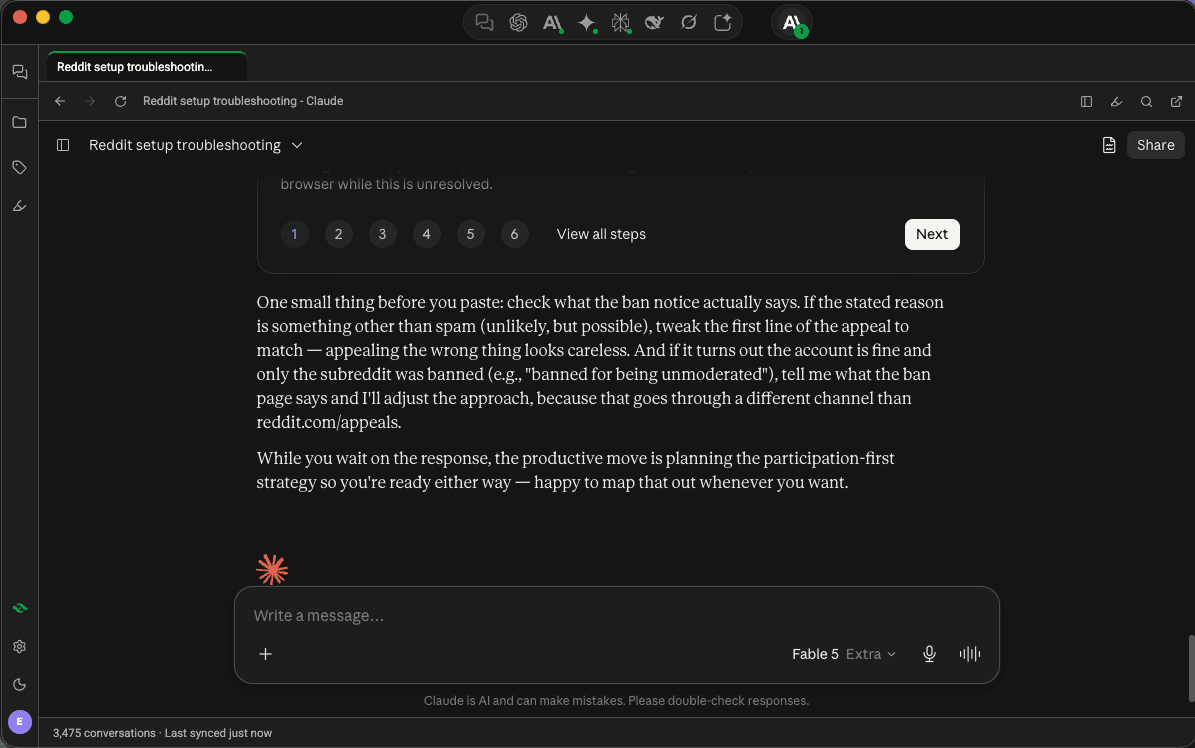
Tab strip above a Claude conversation in Echoes Desktop - 3
Show your library beside the chat
Click the split-view icon in the toolbar (Show your conversations beside this). Your library appears in a column next to the chat. Drag the divider to resize it. Click the icon again to hide it.
Good to know
| Plan | Limit |
|---|---|
| All plans | Up to 10 tabs per platform. An 11th closes the oldest |
- Tabs from two accounts on the same platform can be open together. A colored dot tells them apart.
- Split view resets to its default width when you restart the app.