
Chat with seven AIs in one window
Click a platform icon in the title bar and its real website opens inside Echoes Desktop. You chat as you would in a browser, and Echoes syncs the new chat into your library a few seconds later.
4 steps2 min
Why it matters
Seven AI sites means seven tabs, seven logins to keep alive and no single place to find what you said. In Echoes Desktop the platforms sit in one row at the top of the window. Switch from Claude to Gemini with one click, and every chat you start lands in the same searchable library.
Step by step
- 1
Pick a platform from the title bar
The icons at the top of the window are the seven platforms. Connected ones show a colored dot and come first. Hover one to see the account (ChatGPT · you@example.com). Click it.
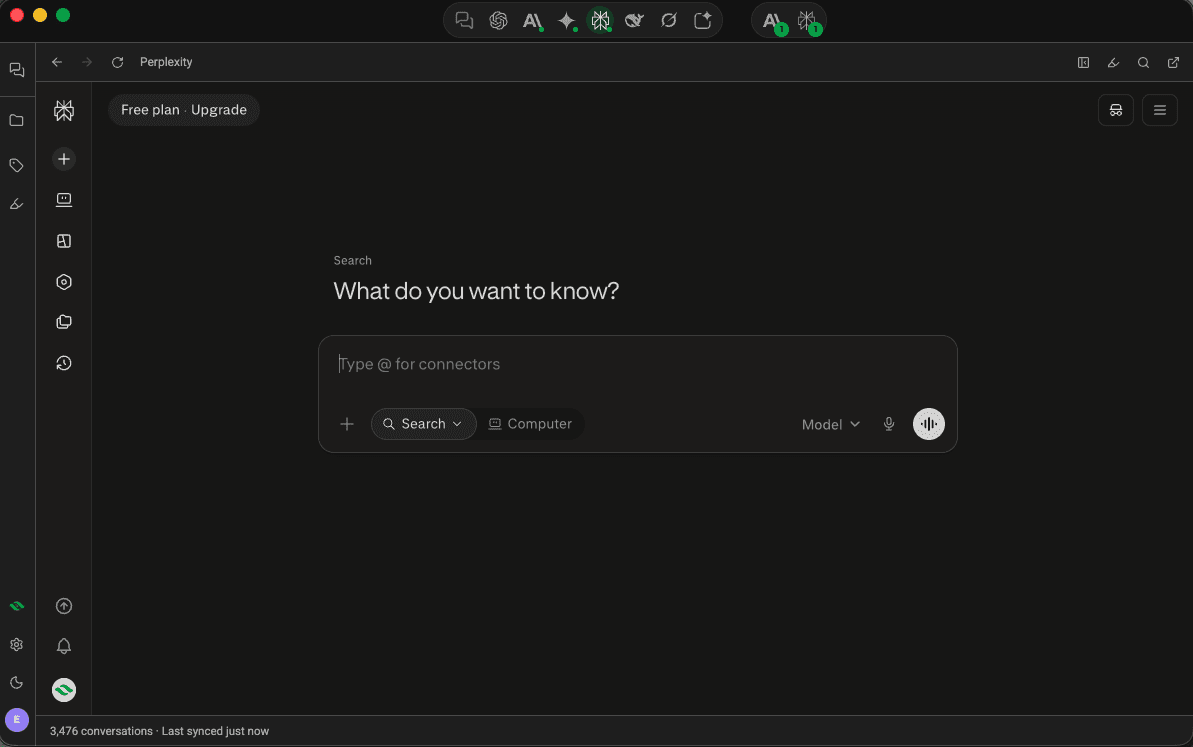
Echoes Desktop showing Perplexity inside the app, platform icons in the title bar - 2
Chat as usual
The platform's own site loads in the window. Type, attach files and switch models the same way you do in a browser. The toolbar above the page has Back, Forward and Reload.
- 3
Use the Echoes toolbar
At the right of the toolbar: the split-view icon (Show your conversations beside this), the highlighter, search (Search your conversations (Ctrl+K)), Continue this conversation in another AI (⇄), and Open in your browser.
- 4
Go back to your library
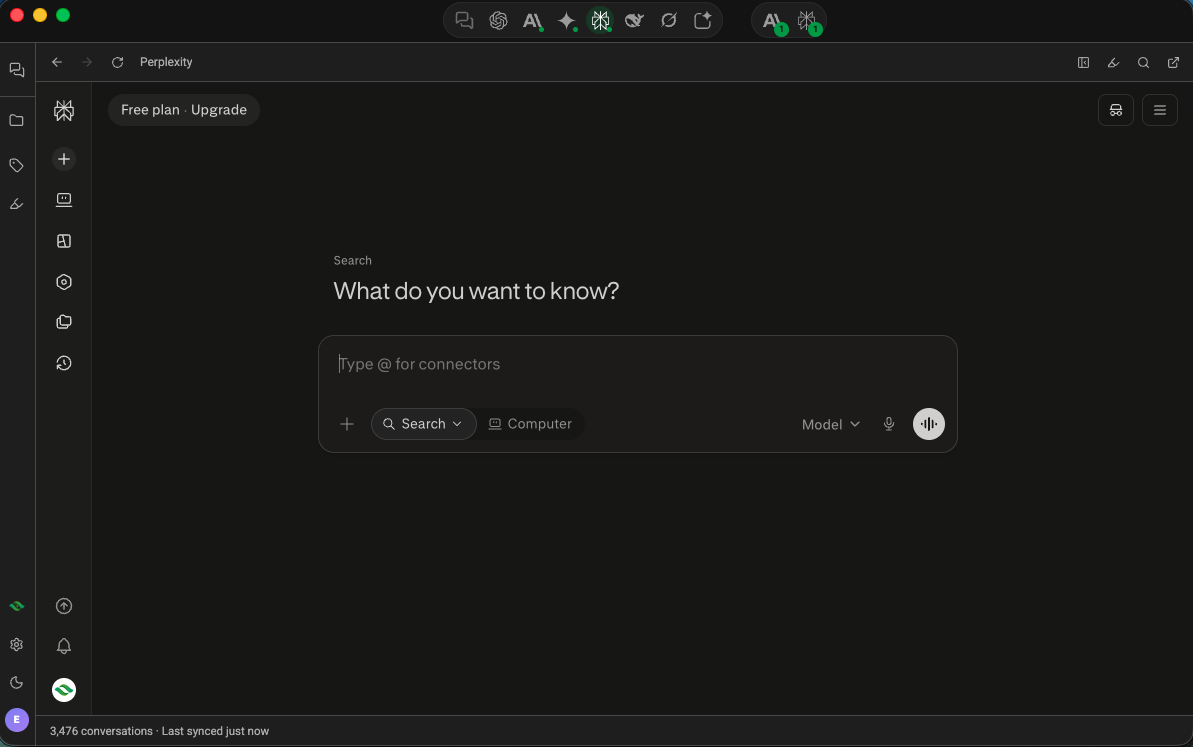
Click the first icon in the title bar (tooltip Search and organise your conversations). Your new chat is already in the list.
Good to know
- Google and Apple sign-in windows open inside the app, so you can sign in the same way you do on the web.
- If a platform signs you out, the status bar says its sync is paused. Click Fix to sign in again.
Related tutorials
- DesktopKeep several chats open as tabs, with your library beside themOpen chats in tabs, up to 10 per platform, and show your library next to the chat you're in.
- DesktopContinue a chat in another AIHand a ChatGPT chat to Claude, or any connected AI to another, with its context.
- DesktopInstall Echoes DesktopGet the app for Windows, macOS (Apple Silicon) or Linux and connect your first AI.