
Rename or delete a chat
Open a chat's ⋮ menu and choose Update Title to rename it, or Delete Conversation to remove it. Both changes happen on the AI platform as well as in Echoes.
3 steps2 min
Why it matters
ChatGPT names half your chats "New chat", and a list of 40 identical titles tells you nothing. Renaming in Echoes fixes the title on ChatGPT too, so the next search finds it by a name you chose.
Step by step
- 1
Open the chat menu
Click ⋮ at the right end of the chat row.
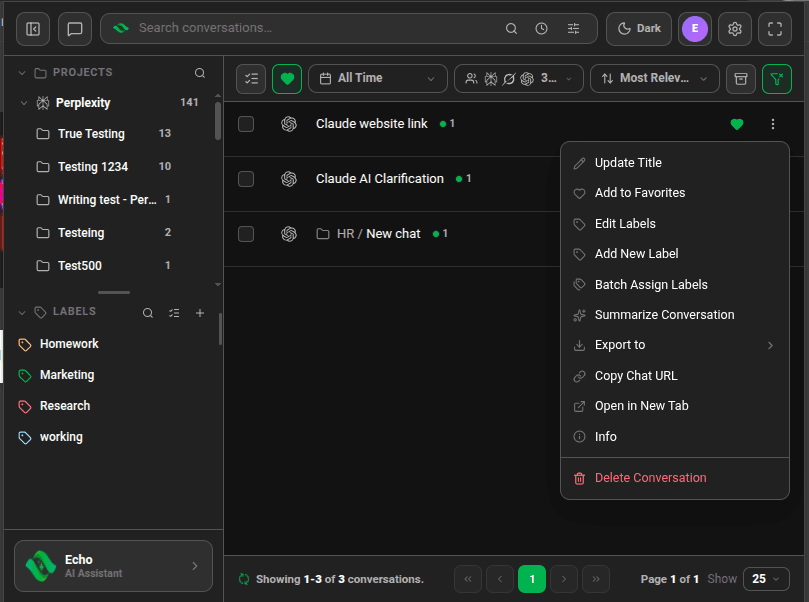
Conversation menu with Update Title at the top and Delete Conversation at the bottom - 2
Rename it
Choose Update Title. The title becomes editable in place. Type the new name and press
Enter, or click the check mark.Esccancels. - 3
Or delete it
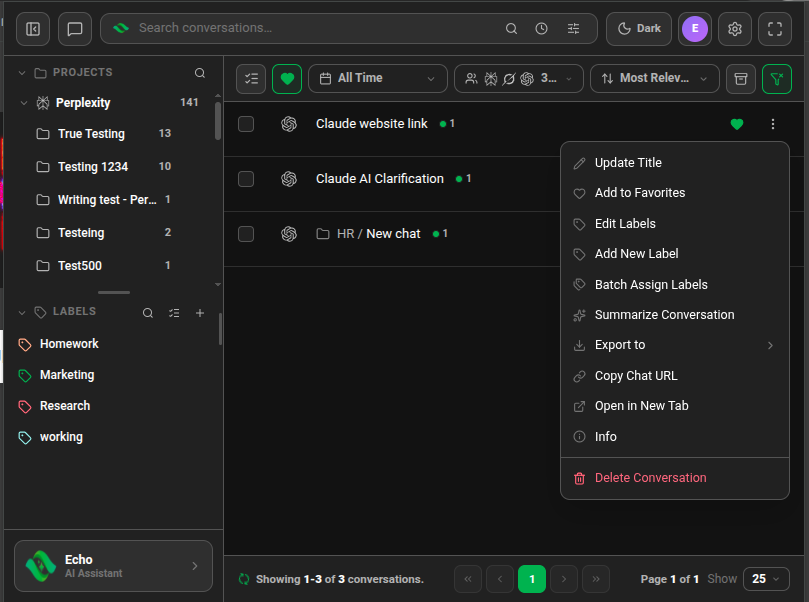
Choose Delete Conversation and confirm. Echoes deletes the chat on the platform as well as in your list.
Good to know
- Info in the same menu shows the chat's title, creation date and last update.
- Copy Chat URL copies the chat's link on its platform. Open in New Tab opens it there.
- On ChatGPT, a deleted chat is hidden from your history, the same as deleting it on chatgpt.com.
FAQ
Can I undo a delete?
Not from Echoes. The chat is deleted on the platform. Export it first if you might need it.
Related tutorials
Try it in Echoes
The free Lite plan covers all seven AI platforms. No card needed.