
Use Echo in the sidebar, side panel or full screen
Echo opens as a column next to your conversation list, as a sheet at the bottom of the Chrome side panel, or full screen. Your past Echo chats stay in history on this browser.
4 steps2 minVideo walkthrough
Why it matters
In the toolbar popup you want Echo beside your results. Working on chatgpt.com, the Chrome side panel keeps Echo next to the page without switching tabs. For a long back-and-forth, full screen gives Echo the whole window.
Step by step
- 1
Sidebar column
In the toolbar popup or the full-screen dashboard, click Echo AI on the left rail. Echo takes the place of the Projects and Labels panel, with your conversation list to its right.
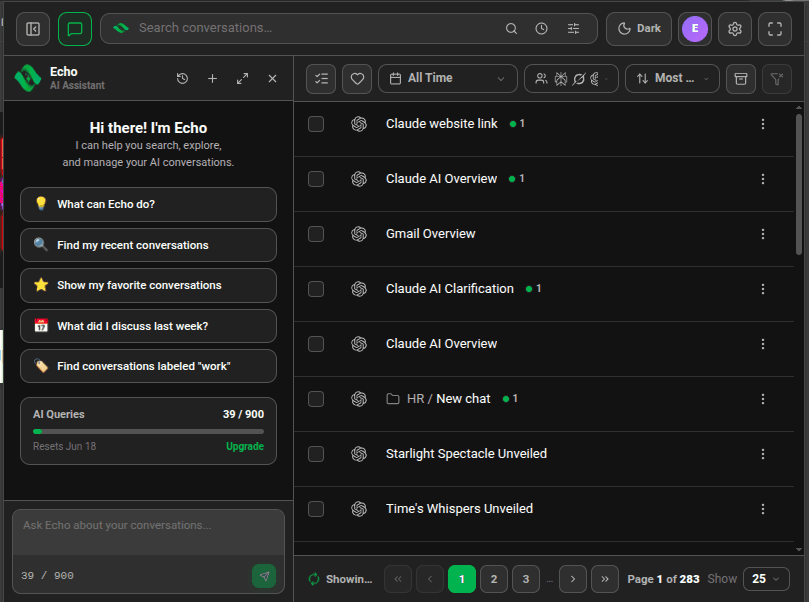
Echo open as a column beside the conversation list - 2
Chrome side panel
Press
Alt+Shift+E, or click the floating Echoes button on a supported AI site, to open Echoes in Chrome's side panel. Click Echo AI and Echo docks at the bottom of the panel. - 3
Full screen
Click the expand icon in Echo's header (tooltip Full screen). Echo fills the window, with your past Echo chats on the side and a search box for them. Click Back to return.
- 4
Return to a past Echo chat
Click the history icon in Echo's header (tooltip Show history). Past chats are grouped by Today, Yesterday, Last 7 Days and older. Click one to continue it. The + icon starts a new one.

Good to know
- Echo history is stored in this browser. It keeps your last 50 Echo chats and removes each one 30 days after you started it.
- Echo keeps your chat when you switch pages or close the popup, so you can pick up where you stopped.
Related tutorials
- ExtensionDesktopAsk Echo to find a conversationDescribe the chat in your own words and Echo runs the search for you.
- ExtensionOpen Echoes from the keyboardCtrl+Shift+E opens the popup, Alt+Shift+E opens the side panel. Change them in Chrome.
- ExtensionOpen Echoes as a popup, side panel or full tabThree ways to open the extension, and when each one fits.