
Connect your AI accounts
Sign in to an AI platform and Echoes offers to add the account with an Account Detected card. Click Add Account and Echoes downloads your chat history. Repeat for each platform and each extra account.
5 steps3 minVideo walkthrough
Why it matters
Echoes needs your accounts to see your chats, and it never asks for your AI passwords. It uses the session you already have on the platform. If you keep a work and a personal ChatGPT, add both: one search then covers the two.
Step by step
- 1
Pick a platform
Extension: click a platform on the home screen, or open the Accounts dropdown in the filter bar and choose Add Account, then the platform. Desktop app: click a platform under Add an account:, or the ▾ next to a platform icon in the title bar and Add another account.
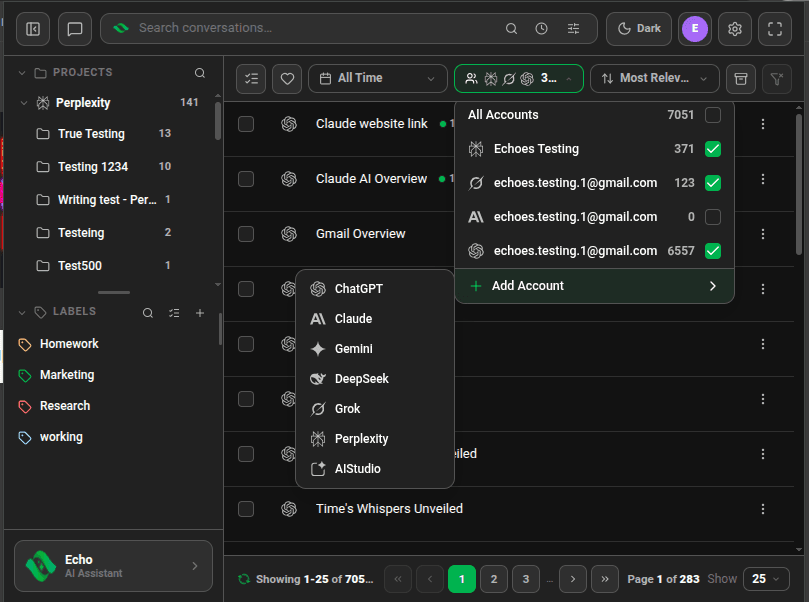
Accounts dropdown with Add Account and the list of seven platforms - 2
Sign in on the platform
The platform opens: in a new browser tab for the extension, inside the app for desktop. Sign in the way you do in a browser. If you are already signed in, skip this step.
- 3
Click Add Account
An Account Detected card appears: "We detected a new … account. Would you like to add this account to Echoes…?" Click Add Account. Ignore skips that account.
- 4
Let the first sync finish
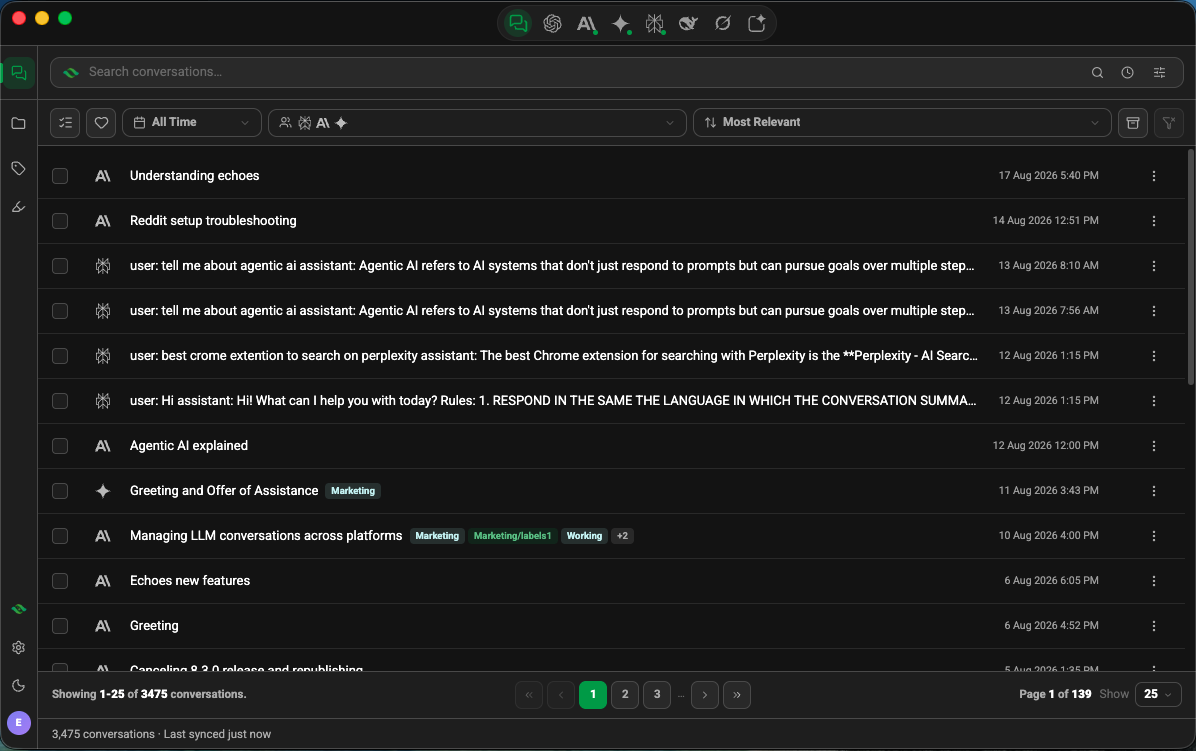
Echoes downloads your history once. The bottom bar counts chats as they arrive, such as 240 / 700 conversations downloaded. A few minutes is normal for a large history, and you can search what has arrived so far.
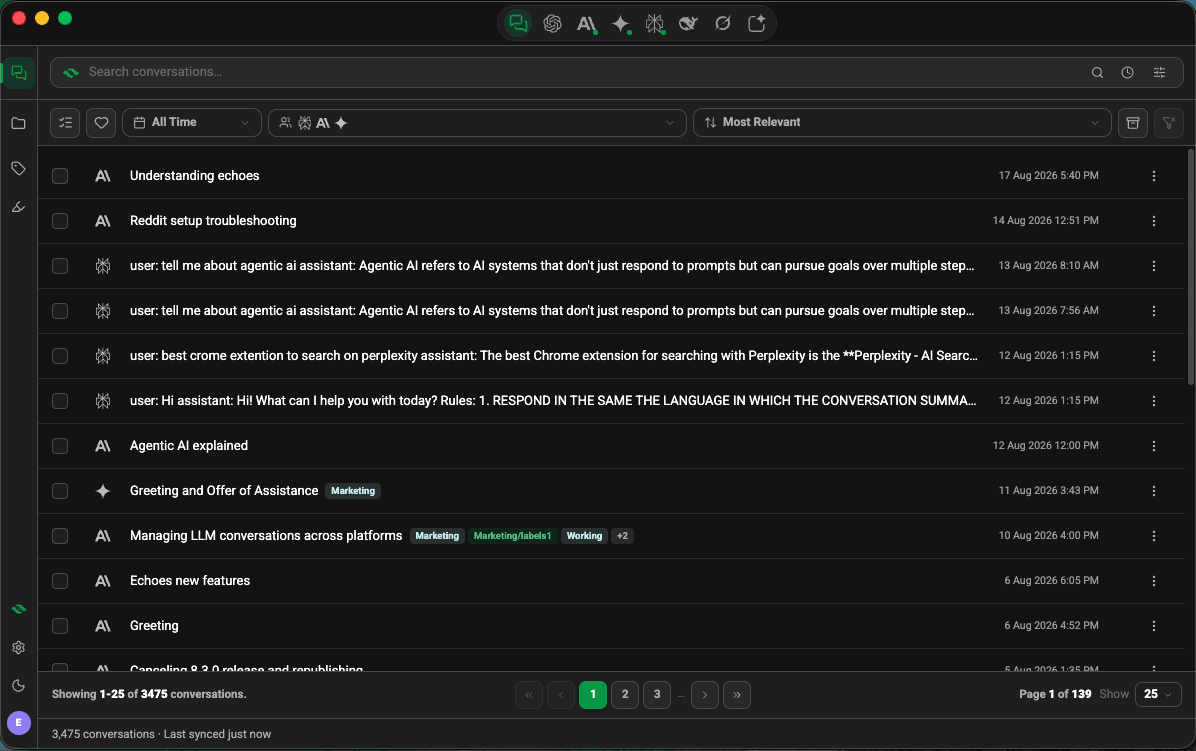
Conversation library filling in during the first sync - 5
Switch accounts on or off
Tick or untick accounts in the Accounts dropdown to choose which ones you see and search. Settings → Accounts turns an account off or deletes it from Echoes.
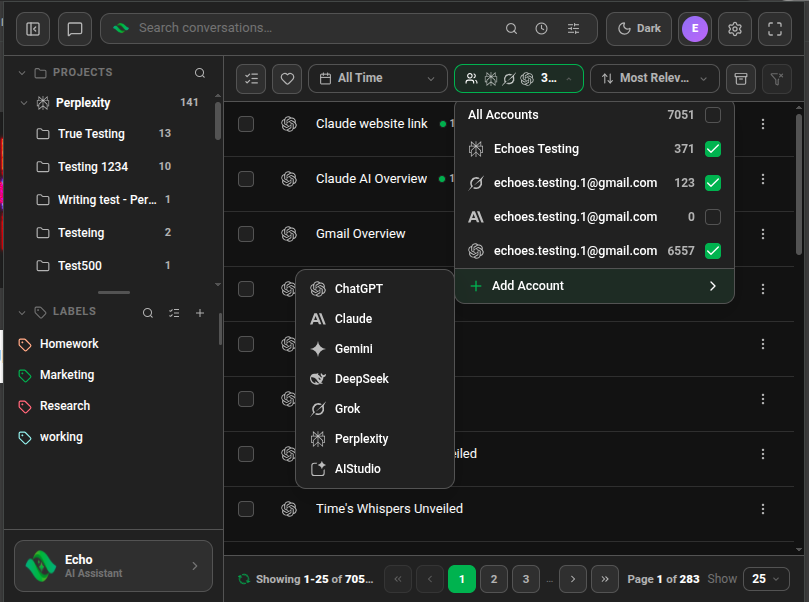
Good to know
| Plan | Limit |
|---|---|
| Extension | No limit on accounts |
| Desktop app | Up to 3 accounts per platform |
- In the extension, stay signed in to each platform in the same Chrome profile. Echoes uses that session to sync.
- After Ignore, pick the platform under Add Account to be asked again.
- The extension starts a short guided tour after your first account. Replay it from Settings → General → Product tour.
FAQ
Does Echoes store my AI passwords?
No. You sign in on the platform itself. Echoes uses the session the platform gives your browser or the app.
Can I connect two ChatGPT accounts?
Yes. Sign in to the second account and add it when Echoes detects it. Both appear in the Accounts dropdown.
Related tutorials
- ExtensionDesktopSearch ChatGPT, Claude, Gemini and four more AIs at onceOne search covers each account you connected. Narrow it to one platform or one account.
- ExtensionOpen Echoes as a popup, side panel or full tabThree ways to open the extension, and when each one fits.
- DesktopInstall Echoes DesktopGet the app for Windows, macOS (Apple Silicon) or Linux and connect your first AI.
Try it in Echoes
The free Lite plan covers all seven AI platforms. No card needed.